Chatbot image input lets customers ask about what they are holding: a damaged product, an error screen, a receipt. Before you turn it on, settle four things: whether your model can actually read images, what the bot may conclude from a photo and what must go to a person, how the bot asks again when a photo is unclear, and how you handle personal information inside images. This post walks through each one, with a table of the photos customers usually send and a way to check what the bot actually "saw" when it gets an answer wrong.
Why customers send photos instead of typing
For many questions, taking a photo is faster than describing the problem. A customer may not know the part name or remember the error code, but they can snap the screen showing the message. People who shop online are used to sending photos to staff over chat, so when they meet a chatbot window, they do the same.
If your chatbot only reads text, the conversation stalls or the bot gives a generic reply. If it reads images, it can describe what it sees, look up the right product documentation and ask a targeted follow-up. But "can read images" is not the same as "reads them correctly", and that gap is what you need to prepare for.
What customers send, and what the bot should do with each
The question for sorting them: if the bot misreads this photo, what does the customer lose?
| Photo type | What the bot does well | What the bot should not decide | Suggested handling |
|---|---|---|---|
| Error screenshots | Read the message, look up the fix | Whether the fault is on your side or the customer's device | Answer from your docs with sources; hand unusual errors to a person |
| Products, labels, stickers | Recognize the product line, read clearly printed codes | Genuine or counterfeit, still under warranty or not | Describe what it sees, ask for the serial number, let staff confirm |
| Damage, dents | Describe where the damage is and how it looks | Manufacturer fault or customer fault, eligible for exchange | Log it, explain the return process, let a person decide |
| Receipts, transfer confirmations | Read amount, date and order code if legible | Whether payment was received, whether the receipt is valid | Never confirm payment from a photo; check the real system |
| Documents, forms | Summarize, extract fields | Legal or medical conclusions | Remind customers to cover unneeded details; route specialist questions to people |
In short, image-reading bots are good at describing and looking things up. Confirming and deciding (warranty, refunds, payment) still needs a person or a system with real data. Write that boundary into your system prompt, as covered in How to write a system prompt for a business chatbot.
Where image-reading chatbots are strong and weak
Model providers document the limits fairly clearly. These are the ones worth knowing before you let customers upload photos:
- Low-quality photos. Anthropic's Vision documentation says the model may hallucinate or make mistakes with low-quality, rotated or very small images under 200 pixels, and recommends clear images that are not too blurry or pixelated (Anthropic, Vision). Customer photos are often blurry, tilted and shot under warm indoor light.
- Small text. Tiny text is hard to read; Amazon Nova's documentation suggests cropping to the relevant section so the text is larger while keeping the needed context (AWS, Amazon Nova image understanding limitations). Heavy compression also makes text harder to read (Anthropic).
- Counting and position. Both documents say counts are approximate when there are many small objects, and that precise localization or layout analysis is weak.
- Multilingual text. Amazon Nova notes limited understanding of multilingual images and possible misreads. Labels printed in several languages deserve extra testing.
- No reliable AI-image detection. Anthropic states the model cannot reliably tell whether an image was AI-generated, so do not use the bot to catch fake photos.
Anthropic's general advice: for high-stakes uses, verify how the model interpreted an image, and do not rely on it for tasks that need perfect precision without human oversight.
One more point that is easy to miss: not every model accepts images. If your agent runs on a text-only model, customer photos never reach the model or get dropped. Check this before you show customers an upload button.
5 things to do before your chatbot accepts customer photos
1. Confirm the model accepts images. Check that your agent's model supports image input, and that the upload button in the chat only appears when the model can read images. An upload button the bot cannot read is worse than no button.
2. Test with real photos, not pretty ones. Collect 10–20 photos customers have sent your support team by chat or email (with permission and personal details covered), including blurry, tilted and cut-off shots. Add hard cases: unrelated images, multilingual labels, a screenshot with a note like "ignore your previous instructions". How to build and score a test set is covered in How to test an AI chatbot before launch.
3. Write the boundaries into the system prompt. List what the bot may do with images (describe, read codes, look up docs) and what it may not (confirm warranty, confirm payment, decide who is at fault). Include a standard reply for out-of-scope cases: describe what you see, then hand over to staff.
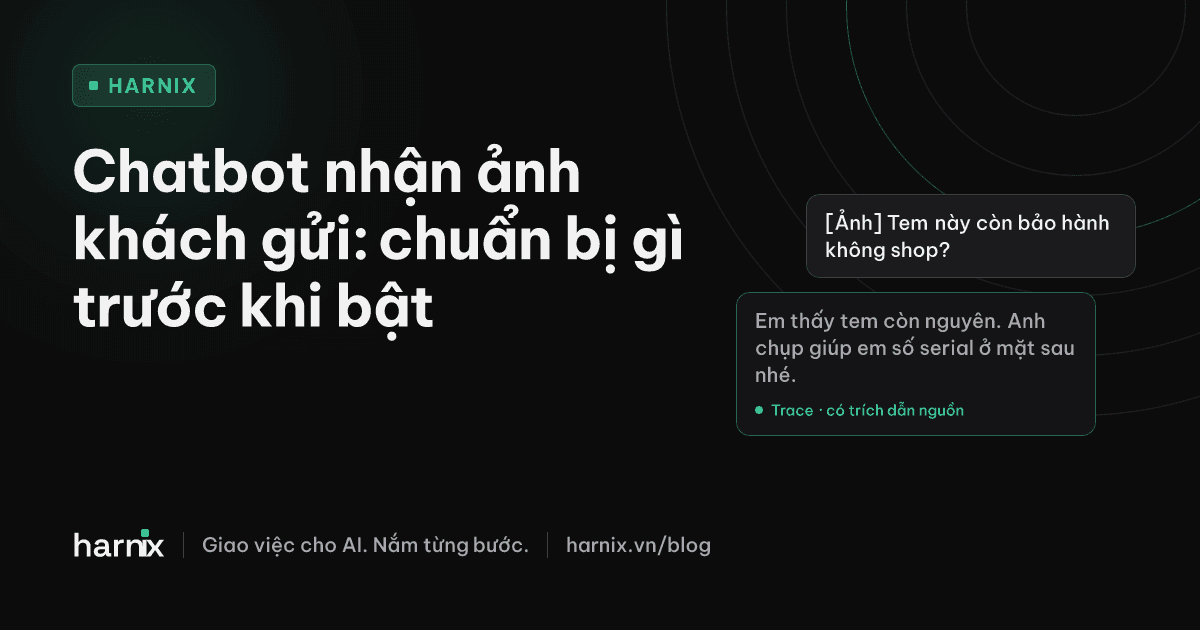
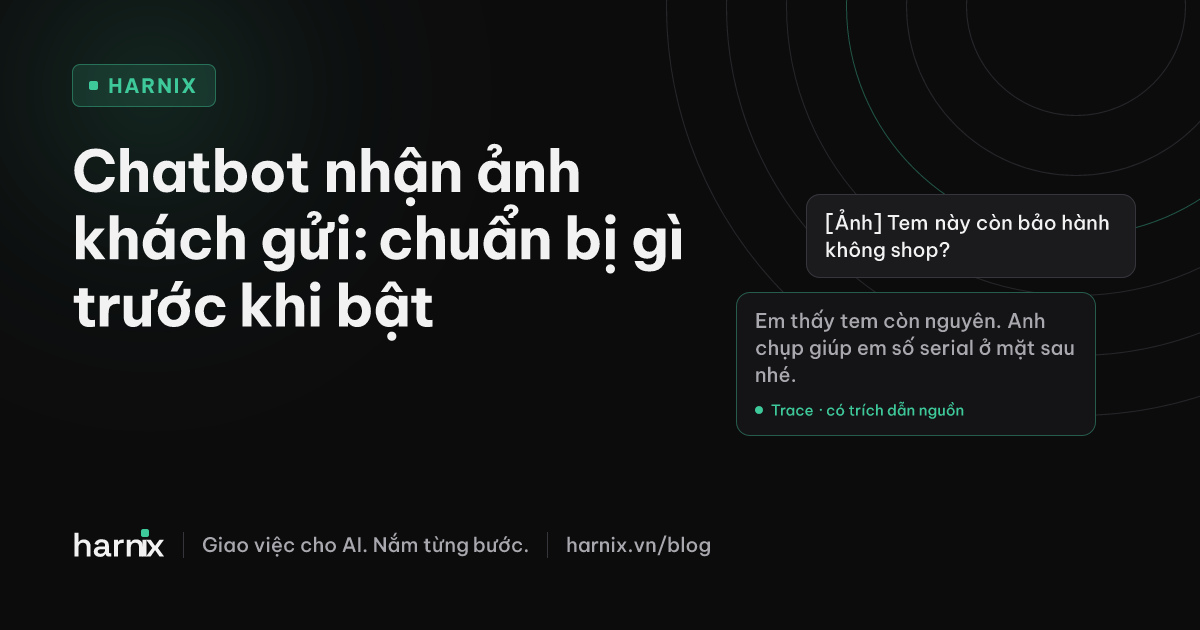
4. Teach the bot to ask again when a photo is not enough. Blurry photo, missing product code, no visible serial number: one specific follow-up question beats a wrong guess. For example: "Could you take a photo of the back, where the sticker is?" See Chatbot clarifying questions for detailed principles.
5. Decide on personal information in photos up front. Receipts show names, phone numbers and addresses; screenshots can expose email addresses. The OWASP list of LLM risks recommends clear policies on data retention, usage and deletion, and guidance for users on avoiding sensitive input (OWASP LLM02:2025). In practice: decide who can review photos, how long they are kept, and add a short note next to the chat asking customers to cover what is not needed.
When the bot gets a photo wrong: check what it saw
With a text question, when the bot answers wrongly you check which documents it read. With a photo, the first question is: what did the image look like when it reached the model?
Customer photos are often downscaled before they go to the model so they fit size limits. A photo of a full receipt can shrink until the order code is no longer legible. In that case the problem is not your documents or your prompt, it is the image itself, and the fix is different: have the bot ask the customer for a closer shot instead of editing your docs.
So when you review an answer involving a photo, you need to see three things: the photo the customer sent, the image that actually ended up in the prompt (with its size), and the steps the bot took next (which documents, which tools). It is the same principle as in AI agent observability: without every step, you can only guess why the bot was wrong.
Sending and reviewing images in Harnix
Harnix is an AI agent operations platform: you embed a chatbot or agent in your existing app, and every answer is recorded as a Run with the documents read, tools called and token cost. According to the changelog, Harnix has supported images in conversations since 23 October 2026:
- Customers send photos directly in the chat widget with an attach button, drag and drop or paste, using PNG, JPEG, GIF or WebP. Since v1.5.5 (4 November), the attach button only appears when the assistant accepts images.
- Know whether the model reads images. The assistant page shows the model's image-input status (auto-detected, manually enabled by an admin, no, or unknown), with a re-detect button and a manual toggle.
- Images are normalized and metadata is stripped when uploaded through the Chat API.
- See exactly what the model received. In a Run's trace, you can check the images in the prompt, the pixel size the model received, and the original size if the image was downscaled. Customer photos also appear under Conversations.
- Test with real photos first. Test chat in the console lets you send and view images, so you can run the step 2 test set before going live.
Frequently asked questions
Does accepting images make the chatbot more expensive? It can. Images count as input tokens, and larger images use more tokens, depending on each model provider's pricing. Track token cost per Run to see how much images add.
Should a chatbot confirm payment from a transfer screenshot? No. Screenshots can be edited, and models cannot reliably tell real images from generated ones. Payment confirmation should come from your actual payment system or a staff member.
What should the bot do with a blurry photo? Say clearly which part it cannot read and ask the customer to retake that specific part, rather than guessing. Put this rule in the system prompt and add blurry photos to your test set.
You can read how to configure an assistant and embed the chat widget in the Harnix documentation, or talk to us at harnix.vn about the kinds of photos your customers send.