Connecting AI agents to the business apps you already use (task trackers, knowledge bases, help desks, payment platforms) is what lets an agent do real work instead of only answering from documents. Start with apps the agent only needs to read, use the narrowest account that gets the job done, turn on only the tools it needs, and keep a human confirmation step for every write action. This post gives you a table for deciding what to connect first, five questions to ask before you click "Connect", and three common mistakes.
Why a documents-only chatbot hits a ceiling
A chatbot that answers from your documents (see What is RAG) handles questions like "what is your return policy?" well. But many operational questions need data that lives in other software: what status is this task in, has this customer paid, what does the latest internal guide say.
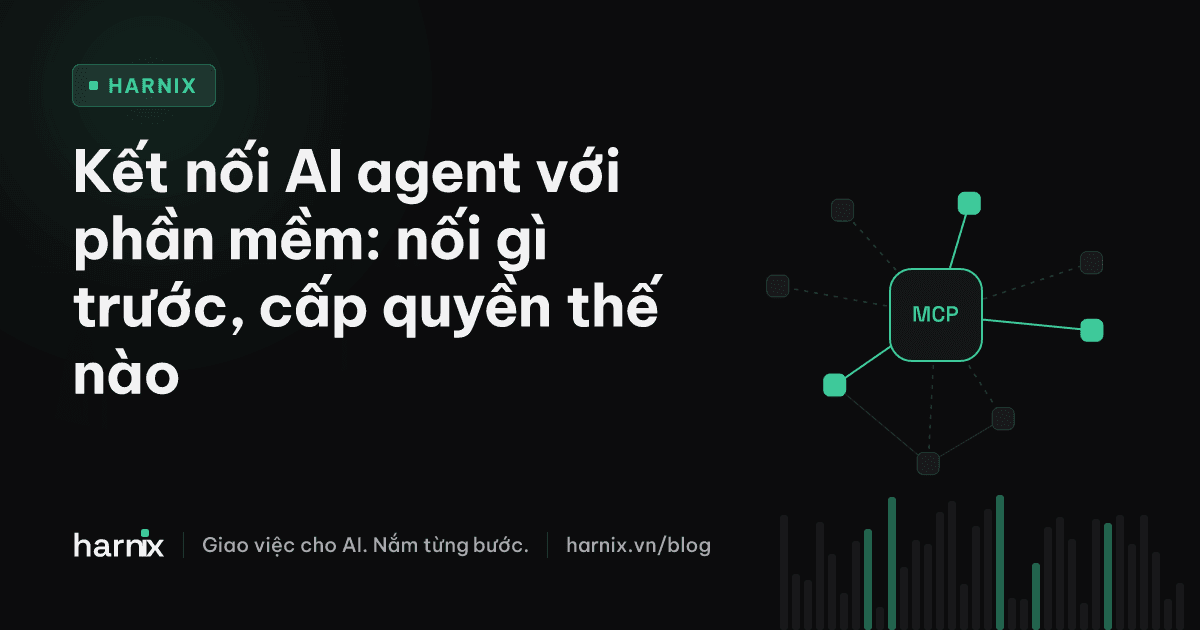
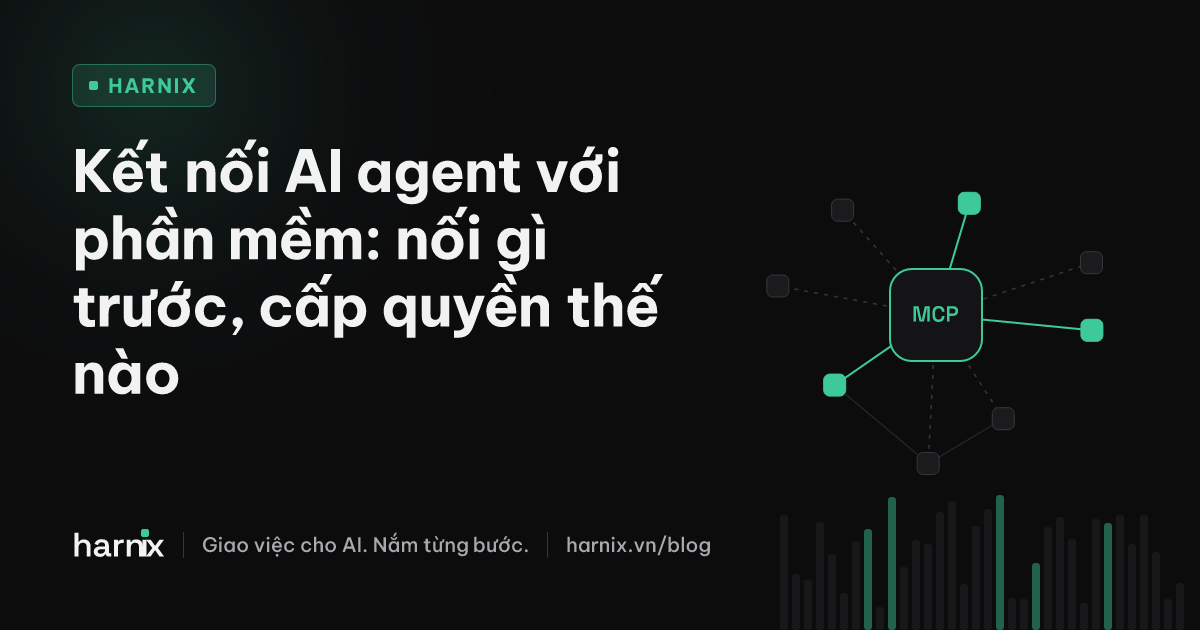
Uploaded documents stand still, while the data in those systems changes every hour. To answer questions like these correctly, the agent has to be connected to the app itself. Technically, the common way to do that today is MCP, an open standard that lets agents call tools in other systems (see What is MCP). This post skips the technical side and answers the operator's question: what to connect first, and how much access to give the agent.
Which business apps to connect your AI agent to first
The question to ask is: if the agent misuses this connection, how bad is it, and how easy is it to undo?
| Type of app | Example work for the agent | Risk level | How to start |
|---|---|---|---|
| Knowledge base, internal wiki | Find the latest how-to page, summarize project docs | Low if read-only | Connect first, read access only |
| Task and project tools | Report task status, list overdue work | Low for reading, medium for creating/editing tasks | Start read-only; require confirmation for creating tasks |
| Databases, CRM | Look up a customer, count orders by status | Medium: personal data | Limit which tables/fields it can see, never enable delete |
| Help desk | Look up ticket history, draft replies | Medium: touches customers | Let it draft, let a person send |
| Payments, invoicing | Check payment status | High: money and financial data | Read-only; refunds and price changes stay with people |
A sensible order is usually top to bottom: run a few weeks with read-only apps, review what the agent called, and only then expand to write actions.
The OWASP Top 10 for LLM applications names the problem you are trying to avoid here "excessive agency" (OWASP LLM06:2025), with three root causes: the agent has more functionality than it needs, its tools have more permissions than they need, and high-impact actions run without anyone verifying them. Every new connection is a place where all three can creep in.
5 questions to ask before you click "Connect"
1. Whose account does the agent use? There are two main options: one shared organization account, or each user signing in with their own account. A shared account suits data everyone may see (public docs, price lists). Anything touching a specific person's data is better handled by having that person sign in. OWASP also recommends running tools in the user's own context, with the minimum scope.
2. What permissions does that account have? When you sign in or create an API key, the app usually lets you choose a scope. Pick the narrowest one that does the job. The MCP security guidance (MCP Security Best Practices) recommends starting with a minimal set of scopes, elevating only when actually needed, and avoiding "full access" style scopes, because a broad token that leaks does more damage and is harder to revoke cleanly.
3. Which tools are on, for which agent? One connection can bring dozens of tools: read, create, edit, delete. An agent that summarizes project progress doesn't need a tool that deletes tasks. Turn on exactly the tools each agent needs and leave the rest off.
4. Do write actions need a human to confirm? For anything that changes data, the default should be a person approving after seeing which tool the agent wants to call and with which parameters. Only after weeks of stable runs should you consider relaxing this for narrow, reversible actions. The post on AI agent permissions covers sorting actions by risk.
5. How do you take it back? Before connecting, know how to revoke: turn off the connection, disconnect one person's sign-in, or delete the key on the other app's side. And know where to review what the agent called through that connection. OWASP puts logging and monitoring in the damage-limiting category: they don't prevent mistakes, but they help you see them early (see also AI agent observability).
3 common mistakes when connecting agents to apps
- Using an admin account because it's quick. An admin account works immediately, so it's tempting, but the agent then has every permission the admin has. Create a dedicated account or key for the agent, with narrow permissions and a clear name so it's easy to spot in the other app's logs.
- Turning on every tool by default. The more tools an agent has, the easier it is to pick the wrong one, and the more paths malicious instructions hidden in data (prompt injection) can exploit. Start with a few tools and add more as real needs appear.
- Forgetting that a scheduled agent has no one to ask. A connection that behaves well in a conversation can behave differently when the agent runs on its own at midnight: no one to approve, no one to sign in. See Scheduled AI agents for how to set that case up.
Preconfigured connections in Harnix
Harnix is an AI agent operations platform: you embed a chatbot or agent in your existing app, and every turn is recorded as a Run with the documents it read, the tools it called and the token cost. According to the changelog, v1.8.0 (November 18, 2026) adds preconfigured connections:
- A Discover tab on the Connections page lists more than 30 services preconfigured by the Harnix team, with a search box, including Notion, Atlassian (Jira, Confluence), Linear, monday.com, ClickUp, Airtable, Intercom, Stripe, PayPal, Canva and Zapier.
- Click Connect, then sign in or enter your own API key. The connection works right away and turns itself on after the first successful sign-in or check.
- No duplicates. If your organization already has a connection with the same address and authentication method, Harnix reuses it.
- No copied credentials. The Harnix team's keys and sign-in sessions are never copied into your organization.
The controls that already existed apply to the new connections too: choosing which tools are on for each agent (Sept 30), in-conversation confirmation before write actions through a connection (Oct 9), and connections that sign in with either a shared organization account or each user's own account, with a "My connections" section where users can disconnect themselves (Nov 1). Every tool call the agent makes shows up in the Run's trace.
Frequently asked questions
How is a preconfigured connection different from adding an MCP server yourself? A preconfigured connection already has its address and authentication set up; you just sign in or enter a key. Adding your own MCP server fits when you have an in-house system or a service that isn't on the list.
Should I use a shared account or have each user sign in? A shared account for data anyone may see; each user's own account for data only that person should see. Either way, keep the account's permissions as narrow as possible.
Should the agent get write access from day one? No. Start read-only, review what the agent called over a few weeks, then open up write actions gradually with a human confirmation step.
You can read how to add connections and choose tools for an agent in the Harnix docs, or talk to us at harnix.vn about the apps you want to connect to your agent.