Slow AI chatbot replies usually aren't a bug: a good AI agent searches documents, calls tools and sometimes waits for a human before it writes an answer, so a reply can take anywhere from a few seconds to a minute. What drives users away isn't the wait itself so much as not knowing what the bot is doing, with no way to stop it. The practical fix is to show step-by-step progress during long waits, and to give users a clear stop button.
Why are AI chatbots slower than scripted chatbots?
A scripted chatbot just picks a prewritten reply, almost instantly. A chatbot built on an AI agent does more work before it answers:
- Thinking and planning: reading the question and deciding what to look up.
- Searching documents: looking through the knowledge base (policies, price lists, guides).
- Calling tools: checking an order, a booking, or data in another app.
- Waiting for people: waiting for the user to answer a clarifying question, or for a staff member to approve a write action.
- Writing the reply: the model generates the text piece by piece.
Each step can repeat over several loops, and harder questions take more steps. A faster model helps, but only so much; our guide to choosing an AI model for a chatbot covers the trade-off between quality and speed. The rest comes down to designing the wait.
How long will users wait for a chatbot?
Nielsen Norman Group's research on response times sets out three limits that interface designers have relied on for years (Response Times: The 3 Important Limits):
- About 0.1 seconds: the system feels like it's reacting instantly.
- About 1 second: the user's flow of thought stays intact, but they notice the delay. Beyond this, show that the system is working.
- About 10 seconds: the limit for keeping attention. Longer than that, show progress and give a clear way to interrupt.
NN/g also reports that users who saw a progress indicator were willing to wait about 3 times longer on average than users who saw nothing (citing a 2004 study by F. Nah). That finding comes from the web in general, not chatbots specifically, but the point carries over: silence makes a wait feel longer.
An AI agent that searches documents and calls tools can easily pass the 10-second mark. That's when a blinking "..." stops being enough.
How should you show progress so users keep waiting?
You don't need to show everything to everyone. Match what you show to the length of the wait:
| Wait time | What to show | Example |
|---|---|---|
| Under 1–2 seconds | Nothing extra, just the answer | Greetings, short questions |
| 2–10 seconds | A "working" indicator | "Answering..." |
| Over 10 seconds | The current step and the steps already done | "Checking the return policy", "Found 2 documents" |
| Waiting for a person | Who it's waiting for and what's needed | "Please pick an appointment time" |
| Stopped by a limit or an error | A plain reason and what to do next | "You've reached today's limit, contact us directly at..." |
A few principles for writing progress lines:
- Describe the task the user cares about, not the technical name. "Checking your order" is clearer than a tool name.
- Collapse when done. Once the answer arrives, fold the steps into a one-line summary to keep the chat tidy.
- Don't expose internal data. Raw tool results can contain other customers' details or internal data. For external users, step names are enough.
- Keep tracking after a page reload. People often reload when things feel slow; if the progress disappears, they ask again and trigger another run.
How much detail should you show?
Two groups watch progress, and they need different things:
- Customers need to know the bot is still working and nearly done. A basic level (step names, a summary line) fits.
- Internal teams (staff using an internal assistant, people testing the bot before launch) need more: what the agent is reasoning about, which tools it calls with which arguments, and what comes back. A detailed view lets them spot an agent heading the wrong way right away, instead of waiting for the final answer.
Progress in the chat window is for watching a run live. After the run, reviewing it still needs a full trace of each turn, as we covered in AI agent observability.
The stop button: when do users need it?
A stop button can look like a small detail, but it handles three real situations:
- The user realizes they asked the wrong thing. Rather than waiting for an answer they don't need, they stop and ask again.
- The agent is heading the wrong way. Watching the progress, a user or staff member sees it searching in the wrong place and wants to rephrase.
- The wait is too long. With a stop button, the user still has a choice other than closing the window.
A stop button only helps if it actually stops the run, not just hides the loading animation. A run that keeps going in the background still spends tokens and may still call tools. For write actions (creating an order, changing a booking), the safe approach is a confirmation step before acting, as we described in AI agent permissions, rather than relying on the stop button.
5 things to do before you turn it on for customers
- Measure real response times. Try 20–30 real questions, and note how many take longer than 10 seconds and which step they stall on.
- Fix the slow parts first. Leaner documents, fewer tools per agent and clearer instructions in the system prompt often cut the number of loops.
- Choose the level of detail by audience. Basic for customers, detailed for internal teams and testing.
- Write the stop messages in advance. When a user presses stop, hits a limit or runs into an error: one plain sentence and one next step for each. Our post on AI chatbot usage limits has suggestions for the limit case.
- Review stopped runs. A run the user stopped is a good signal for finding questions the bot handles poorly.
In Harnix: step-by-step progress and a Stop button
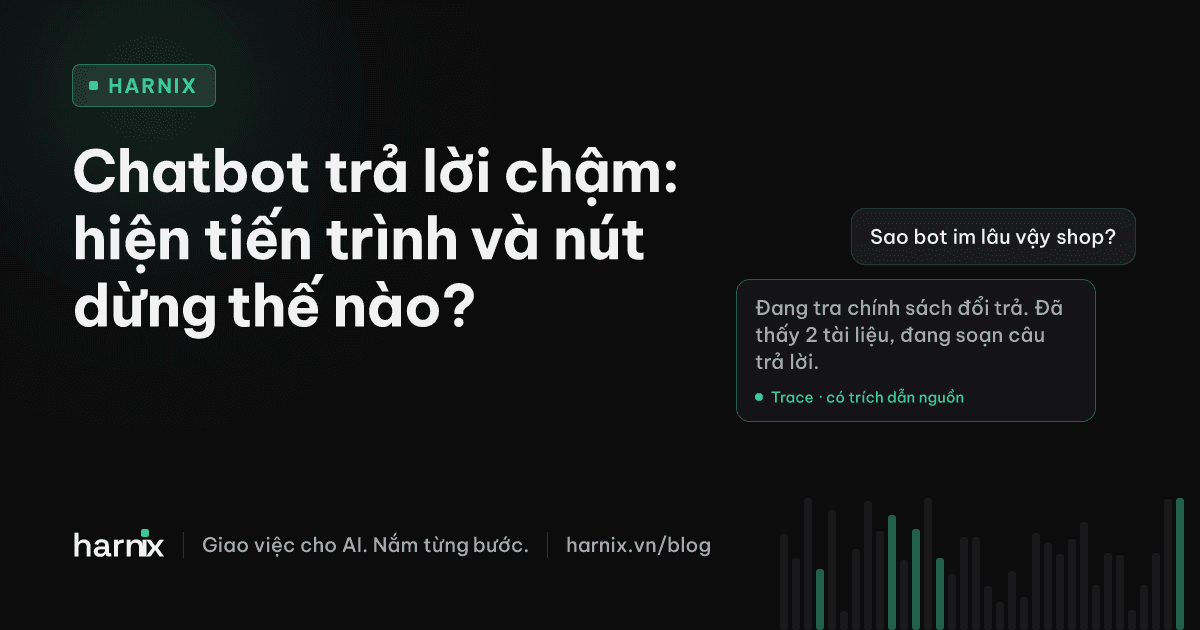
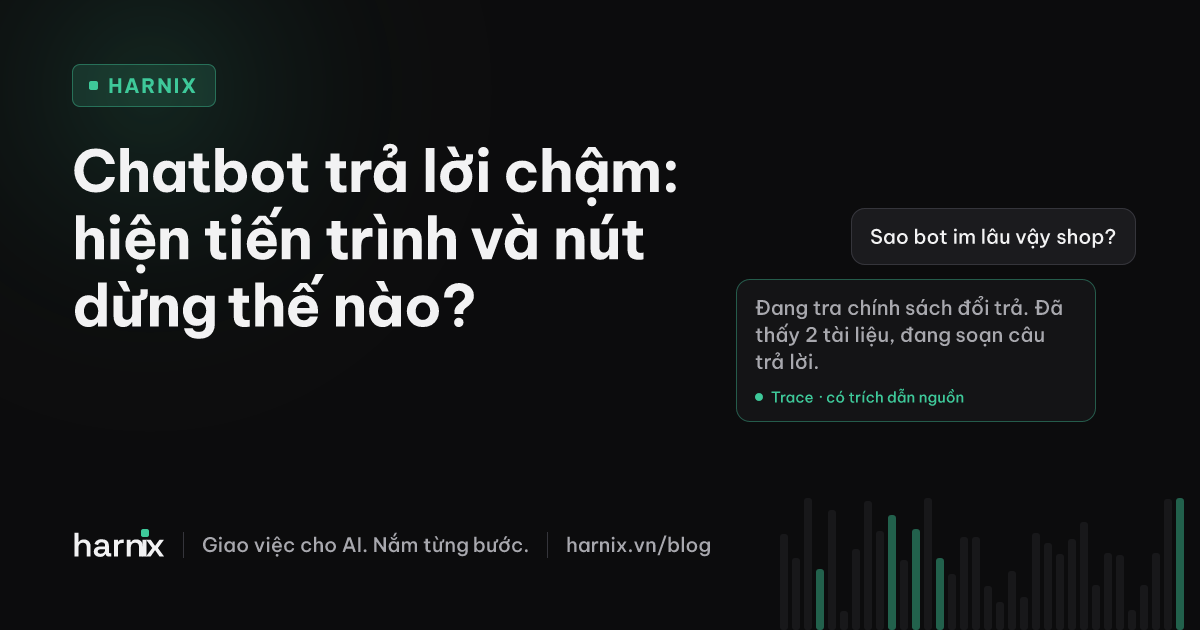
Since v1.3.0 (October 24, 2026), the Harnix chat widget shows the progress of each run step by step: reasoning, document search, tool calls, and waiting for an approval or for the user to answer a question. When the run finishes, the steps collapse into a one-line summary. Each assistant can use a basic or detailed progress view; the detailed view adds the reasoning plus tool arguments and results. The Stop button cancels the run immediately, and if the user reloads the page, the widget picks the running run back up and keeps tracking it.
A few related details: the Playground can also stop a run, and since v1.5.7, when a run stops because a budget ran out, the message says which one (organization, assistant or end user). Every run, including stopped ones, still has a trace you can review later. For why each answer is its own run, see Why every agent answer is a Run.
Frequently asked questions
How long is an acceptable response time for an AI chatbot? There's no single number. Based on NN/g's limits, past about 1 second you should show that the system is working, and past about 10 seconds you should show progress and a way to stop.
Should customers see the AI's reasoning? Usually not. Customers need to know what the bot is doing at the level of step names. Reasoning and tool results are more useful to internal teams and during testing.
Does pressing stop lose the conversation? That depends on the implementation. It's best to keep the history so the user can rephrase and continue in the same conversation.
To see how to turn on progress and choose the display level for your assistant, read the Harnix docs or reach us at harnix.vn.